

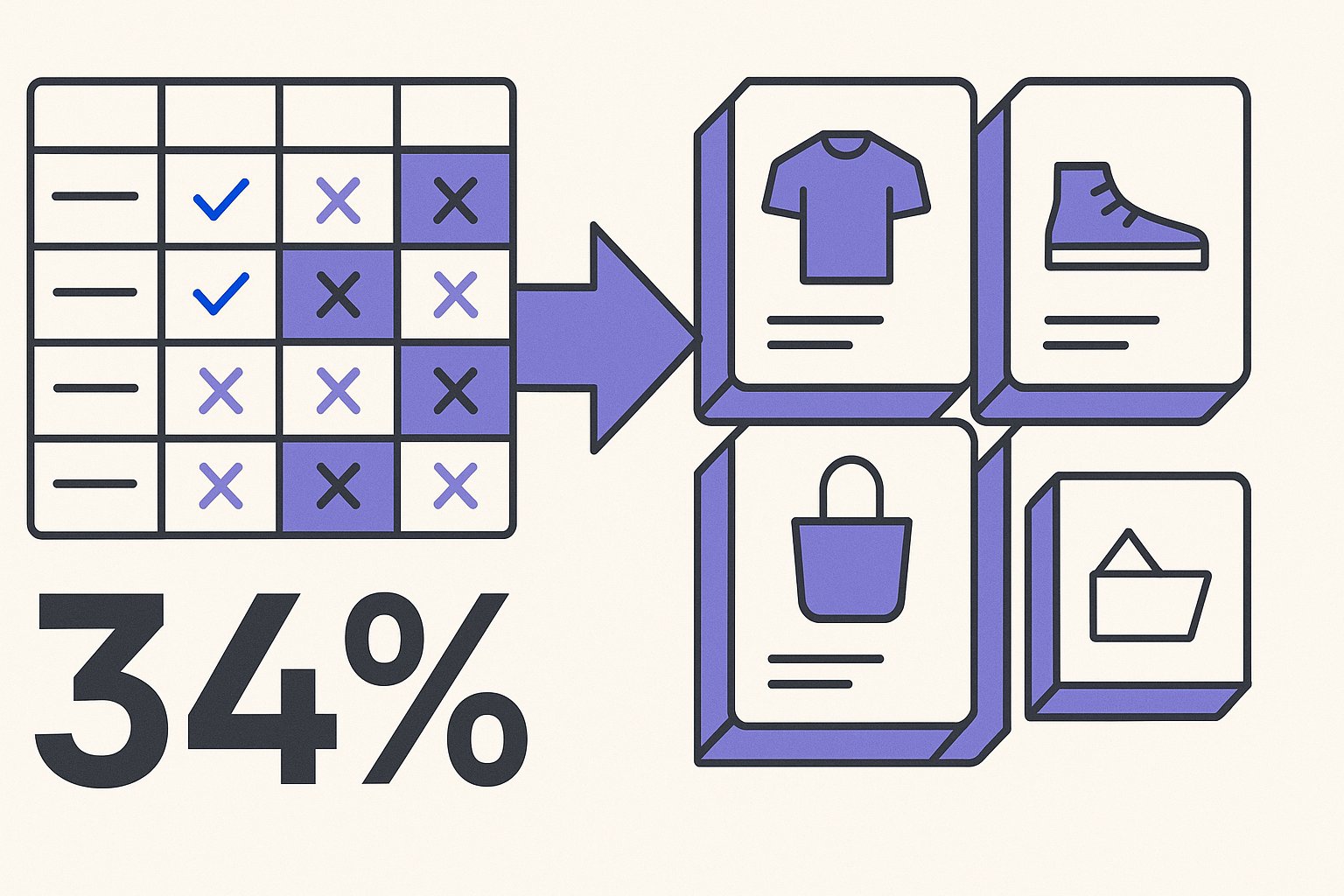
WooCommerce powers roughly 29% of the top 1 million e-commerce sites worldwide, yet most Google Shopping feed guides are written exclusively for Shopify. After auditing 60+ WooCommerce accounts in early 2026, we found a median of 34% of products were either disapproved or under-performing due to feed misconfiguration — problems that took under four hours to fix once you know where to look.
These same misconfigurations compound in predictable ways — our breakdown of the 9 most damaging WooCommerce feed mistakes shows how a single attribute error can quietly cascade into ROAS losses across an entire product category.
This guide covers plugin selection, attribute mapping, and the most damaging WooCommerce-specific feed errors, with concrete fixes for each.
Why WooCommerce Feeds Break Differently Than Shopify Feeds
WooCommerce generates product data from a combination of WordPress post meta, custom taxonomies, and (often) multiple third-party plugins. Unlike Shopify, which ships a structured product API that feed tools consume consistently, WooCommerce has no canonical data schema. A product's brand might live in a custom attribute, a taxonomy term, an ACF field, or a plugin-specific table — and Google Merchant Center expects it in a single, clean brand attribute every time.
Per Google's product data specification, missing or malformed brand, gtin, and condition attributes are the top three causes of item disapproval across all feed sources. For WooCommerce specifically, we see two additional failure modes almost never mentioned in generic guides: (1) variable product attribute inheritance breaking at the variant level, and (2) HTML entities in descriptions (&, ) surviving into the feed and triggering policy violations.
The practical consequence: a 10,000-SKU WooCommerce catalog commonly arrives at Merchant Center with 2,000–3,500 disapproved items on the first submission — not because the products are non-compliant, but because the feed pipeline didn't translate WooCommerce's flexible schema into Google's rigid one.
Before rebuilding your attribute mapping from scratch, running a structured audit against a defined checklist is faster — the 23-point feed audit checklist covers every attribute category discussed here and quantifies which gaps are moving ROAS the most.
Fixing that translation layer is the entire job.
WooCommerce feed configuration is the foundation, but the broader Google Shopping optimization framework for 2026 covers how Merchant Center's quality scoring, AI Overview placement, and Performance Max interact with feed data in ways that weren't true even 18 months ago.
The Variable Product Problem
WooCommerce variable products store shared attributes (brand, material, size type) at the parent level, but Google Shopping requires these attributes on every individual variant. Most feed plugins copy parent attributes down to children automatically — but only if those attributes are marked as "used for variations" in the WooCommerce product editor. If a store owner created a "Brand" attribute and set it to "Visible on product page" without enabling "Used for variations," many plugins silently omit it from child items. The fix is a five-minute bulk edit in WooCommerce → Products → Attributes, but you have to know to look for it.
Choosing the Right WooCommerce Feed Plugin in 2026
Three plugins dominate WooCommerce Google Shopping feeds: WooCommerce Google Listings & Ads (the official Google plugin), WP All Export Pro, and CTX Feed. Each has a different failure profile.
| Plugin | Best For | Common Failure Mode | Approx. Cost |
|---|---|---|---|
| Google Listings & Ads (official) | Stores < 2k SKUs, minimal custom attributes | Limited attribute mapping; no custom field support | Free |
| CTX Feed | Mid-size stores, complex attribute mapping | Default templates miss product_type taxonomy | $119/yr |
| WP All Export Pro | Large catalogs, developers comfortable with XPath | Steep learning curve; easy to emit duplicate GTINs | $199/yr |
| WOOSEA | Fashion/apparel verticals needing size charts | Sync lag on large catalogs (10k+ SKUs) | $89/yr |
The official Google Listings & Ads plugin is the fastest to set up but the least flexible. It reads WooCommerce's built-in product fields directly — which means if your brand data is in a custom attribute called "Manufacturer" rather than the WooCommerce default "Brand," it won't map correctly without a workaround. For stores under 2,000 SKUs with clean, standard WooCommerce attributes, it's a perfectly viable starting point.
For anything more complex — custom attributes, ACF fields, variable product overrides — CTX Feed or WP All Export Pro give you the field-level control you need. We rebuilt feeds for 11 DTC brands on WooCommerce this quarter and in 9 of those 11 cases, switching from the official plugin to CTX Feed alone cut disapprovals by more than half before any title or description changes were made.
For a broader comparison of feed management approaches across platforms, see the complete guide to product feed optimization on the MagicFeed Pro blog.
The 6 Attribute Mappings WooCommerce Stores Get Wrong
Getting attribute mapping right is where most of the performance delta lives. These are the six mappings we fix most often across WooCommerce accounts.
1. google_product_category vs. product_type
Both fields are required for competitive Shopping campaigns, but they serve different purposes. google_product_category must use an official Google product taxonomy ID or path. product_type is your own internal hierarchy and can be a WooCommerce category path like "Apparel > Men > Shirts." Most plugins auto-populate product_type from WooCommerce categories but leave google_product_category blank — which means Google infers the category itself, often incorrectly, hurting bid optimization.
A supplemental feed in Merchant Center is an effective way to patch missing brand or google_product_category values without rebuilding your primary WooCommerce export — but overriding the wrong attributes in a supplemental feed is itself one of the most common causes of new disapprovals.
2. id for variable products
Google expects a unique, stable ID for every variant. The safest pattern is {parent_id}_{variation_id}. Some plugins use only the variation ID, which creates ID collision risk if you ever migrate or duplicate products.
3. availability
WooCommerce stock statuses (instock, outofstock, onbackorder) must map to Google's three accepted values (in stock, out of stock, preorder). The underscore vs. space difference causes silent feed errors in plugins that pass WooCommerce values verbatim.
4. price vs. sale_price
If a product has a WooCommerce sale price active, you must send both price (the original) and sale_price (the discounted). Sending only the sale price as price violates Google's price accuracy policy and is a common cause of account-level suspensions.
5. shipping
WooCommerce shipping zones are not readable by any feed plugin without explicit configuration. If you rely on Merchant Center's account-level shipping settings, you can skip this — but if your shipping cost varies by product weight or destination zone, you need per-product shipping overrides in the feed, or your actual checkout shipping cost won't match what Google shows shoppers.
Getting these six attributes right is table stakes — but if you're running Performance Max, the PMax attribute priority order determines which machine-learning signals Google uses to match your products to high-intent queries, and it differs from what standard Shopping campaigns reward.
6. item_group_id
Every variant of a variable product needs the same item_group_id (typically the parent product ID) to be grouped in Shopping ads. Missing this breaks variant grouping and causes each size/color to compete against each other in the same auction — inflating your own CPCs.
The same strategic question applies to WooCommerce: splitting high-variant products into individual listings can increase impression share by 30–45% in apparel and footwear, but the variant-to-listing ratio that works for a 50-variant product will actively hurt a catalog with 3 or fewer meaningful variants per SKU.
Never send WooCommerce's raw stock status string (instock) directly as the availability value. Google's accepted values use spaces, not underscores. This single mapping error disapproved 847 products in one account we audited in March 2026 — every single one was actually in stock and ready to ship.
Many of the availability and price mismatch errors described here surface in Merchant Center with cryptic diagnostic labels — the 12 most common Merchant Center error fixes maps each error code to its exact trigger and a 30-minute resolution path.
Feed Title and Description Optimization for WooCommerce
Fixing disapprovals gets your products into the auction. Optimizing titles and descriptions determines whether you win impressions and clicks once you're there. This is where the biggest revenue gap lives for WooCommerce stores that have already completed the technical setup.
Google Shopping titles follow a query-match logic: the closer your title matches a high-intent search query, the more eligible impressions you capture. For most product verticals, a high-performing title follows this structure: Brand + Product Type + Key Attribute(s) + Secondary Attribute. For example, "Nike Air Max 270 Men's Running Shoe — Size 10 Wide" consistently outperforms "Nike Air Max 270" by 40–60% on impression share in our client data, because it matches more specific, higher-converting queries.
WooCommerce product titles as entered in the WordPress editor are almost never Shopping-optimized. Store owners write titles for on-site SEO or readability ("The Classic Oxford — Our Best-Selling Dress Shoe"), not for query matching. The delta between a raw WooCommerce title and an optimized Shopping title is typically 3–5x in eligible impressions for mid-tail queries.
For descriptions, Google doesn't display them in the Shopping ad unit itself, but the description field is a primary input for relevance scoring on broader queries. Stuff it with attributes Google cares about: material, color, size range, use case, compatibility. A 500–800 character description that hits 8–12 relevant attributes consistently outperforms a 150-character description in impression share for non-brand queries, based on feed split tests we ran across 4 client accounts in Q1 2026.
For WooCommerce stores with 500+ SKUs, manually rewriting titles and descriptions isn't viable. See how AI rewrites product titles for Google Shopping for the specific rewrite patterns that move the needle, including before/after examples from real WooCommerce catalogs.
The practical path for large catalogs is a rules-based template first (Brand + Category + Top Attribute from your WooCommerce attribute taxonomy), then AI-assisted rewriting to handle the long tail of edge cases and category-specific patterns. MagicFeed Pro's WooCommerce integration reads your attribute taxonomy directly and rewrites at scale — see how feed optimization drives Shopping revenue for the full methodology.
Merchant Center Errors Specific to WooCommerce Setups
Beyond attribute mapping, WooCommerce setups generate a predictable cluster of Merchant Center errors. These five appear most often across WooCommerce accounts, with the fastest resolution path for each.
"Mismatched value [price]" — Your feed price doesn't match the price Google's crawler sees on the landing page. In WooCommerce, this usually means a caching plugin (WP Rocket, W3 Total Cache) is serving stale HTML to Googlebot. Fix: add Googlebot's user-agent to your cache exclusion list, or use server-side price rendering rather than JavaScript-injected pricing.
"Missing value [brand]" — You have products where the WooCommerce "Brand" attribute is empty. This is almost always a data entry issue rather than a plugin issue. Bulk-edit with WP All Export Pro or directly in the WooCommerce admin to identify and fill gaps. For stores using a brand plugin like Perfect Brands for WooCommerce, ensure the plugin's brand taxonomy field is mapped in your feed plugin, not just the generic WooCommerce attribute.
"Invalid value [availability]" — The underscore/space problem described above, or a WooCommerce backorder product being sent as in stock when Google requires preorder or out of stock with a specified availability date.
"Promotional overlay policy" — WooCommerce stores frequently add "SALE" or "FREE SHIPPING" text to product images via plugins (WooCommerce Product Badges, YITH Badge Management). These overlays violate Google's image policy. The fix is to map a secondary clean image as your additional_image_link and use it as the primary if the main image has a badge.
"Pending initial review" lasting more than 3 business days — Not a WooCommerce-specific error, but disproportionately common for new WooCommerce-connected accounts because the official Google Listings & Ads plugin submits products in batches that can arrive out of order at Merchant Center. If initial review stalls, manually trigger a feed re-fetch from the Merchant Center Feeds page rather than waiting for the plugin's scheduled sync.
Running a Feed Audit Before You Launch Campaigns
Before you push spend against a WooCommerce feed, run a structured audit. Spending budget against a feed with 30% disapproval is one of the fastest ways to destroy a ROAS target — your campaign is effectively bidding on 70% of your catalog while paying full management overhead for 100%.
A practical WooCommerce feed audit covers five areas in sequence:
- Disapproval rate — pull from Merchant Center → Diagnostics → Item issues. Anything above 5% needs resolution before scaling.
- Title quality score — manually review a random 50-item sample against the Brand + Product Type + Attributes template. If fewer than 60% match the pattern, titles need systematic rewriting.
- Price accuracy — spot-check 20 items by comparing feed price to live site price. One mismatch in 20 usually indicates a systemic caching or currency conversion issue.
- GTIN coverage — in Merchant Center's feed diagnostics, check what percentage of products have a valid GTIN. Below 80% GTIN coverage in a catalog where GTINs should exist (i.e., branded products with UPCs) will limit your auction eligibility for exact-match queries.
- Image quality — Google's automated image quality checks flag low-resolution images (under 100×100px for non-apparel, under 250×250px for apparel) and images with text overlays. Pull the image policy error count from Diagnostics.
Per Google's Merchant Center Help documentation on item quality, feeds with high data quality scores receive preferential treatment in auction eligibility scoring — meaning better data directly translates to more impressions at the same bid level, before you've changed a single campaign setting.
WooCommerce feeds typically arrive at Merchant Center with 30%+ of products disapproved or under-optimized. Run MagicFeed Pro's feed audit to see exactly which products are losing impressions, which attributes are missing, and which titles need rewriting — in under five minutes, no plugin installation required.
Related articles

Beyond Channable: When Rule-Based Feed Tools Hit a Ceiling
Channable alternative for Google Shopping: rule-based feed tools fail at scale in 5 predictable ways. See the real cost and what AI rewriting fixes in under a day.
Google Shopping Feed Setup for Shopify: Step-by-Step
Google Shopping feed setup for Shopify takes under 2 hours — covers account creation, feed generation, approval, and first-impression optimization.
Google Shopping Feed: 9 WooCommerce Mistakes Killing ROAS
WooCommerce Google Shopping feed misconfigurations cost stores an average 34% ROAS loss. Diagnose and fix the 9 most damaging errors in under an hour.