

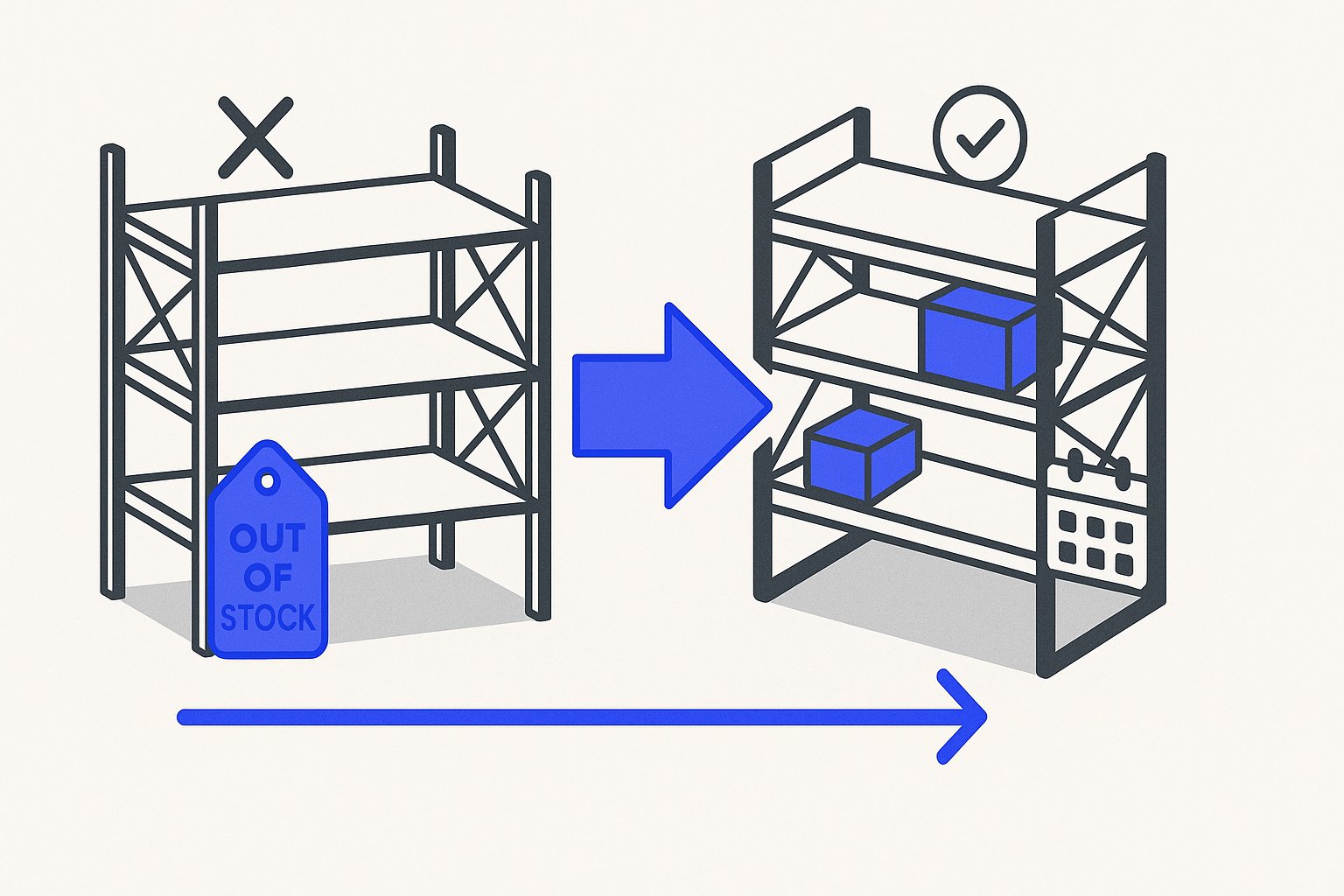
When a supplier ships stock to your warehouse but the goods have not arrived yet, you face a specific feed question: what do you submit for availability and availability_date? Getting this wrong leads to product disapprovals or, worse, a mismatch between what shoppers see in an ad and what they find on your landing page.
This article covers the two realistic options—backorder and out_of_stock—explains when each applies, and walks through a hypothetical example to make the decision concrete.
Understanding the Four Supported availability Values
Google Merchant Center accepts exactly four values for the availability attribute for standard (non-vehicle) products. Google documentation defines them as follows:
in_stock– You are accepting orders and can fulfil the purchase. The item will ship or be in-transit to the customer in a timely manner.out_of_stock– You are not accepting orders, or the product is not available for purchase.preorder– You are accepting orders, but the product has not yet been released for sale. Anavailability_dateis required.backorder– The product is not available right now, but you are accepting orders and it will ship when it becomes available again. Anavailability_dateis required.
The key distinction for in-transit inventory is the order acceptance question. According to Google documentation, "The product isn't available at the moment, but you're accepting orders and it will be shipped when it's available again" is the definition of backorder [backorder]. If your store is open for orders on a product that is physically on a truck or container ship, backorder is the correct value. If you have temporarily closed the product page to new orders while you wait for stock, out_of_stock is correct.
Note that preorder is reserved for products that have not yet been released for sale at all—not for existing products that are temporarily unavailable. Google documentation states: "The preorder [preorder] value should only be used for new products that haven't been released yet. Existing products that are out of stock and will be back in stock at a later date that you're accepting orders for should use backorder [backorder]."
When backorder Requires availability_date
If you submit backorder, Google requires you to also submit the availability_date attribute. Google documentation states: "Required if you set the availability [availability] attribute to preorder or backorder." Without it, your product may be disapproved.
The date must be formatted as ISO 8601: YYYY-MM-DDThh:mm[±hhmm] or YYYY-MM-DDThh:mmZ. The field accepts 1–25 characters. A valid example from the specification is 2016-12-25T13:00-0800.
Best practices from Google documentation include:
- Specify a time and timezone alongside the date. If you omit them, the system defaults to 12 AM midnight UTC, which may display an inaccurate date to shoppers.
- Do not submit a date range. Use a single estimated date and update it as soon as your confirmed ship date is known.
- The date must also appear on the landing page. Google requires the expected shipping date to be visible to customers before they complete checkout. An exact date is preferred; an estimated month is permitted when an exact date is not yet confirmed.
The allowed future window is up to one year from the submission date.
Landing Page Requirements You Cannot Overlook
Whichever value you submit, the landing page must match. Google documentation requires: "Match the availability listed in your product data with the availability listed on your landing page and checkout pages."
For backorder items specifically:
- The page must display the expected shipping date. A vague phrase like "coming soon" is not sufficient if you have a confirmed date.
- The page must include a functional "buy" or "add to basket" button, since you are actively accepting orders.
- Any delivery restrictions (such as limited shipping regions) must be stated clearly.
For out_of_stock items, you should display clear text such as "sold out" or "item not available", or use a disabled/greyed-out buy button. Do not show an active buy button for an out-of-stock product.
A common disapproval pattern occurs when a merchant keeps the product page active with a buy button (implying in_stock) but submits out_of_stock in the feed—or vice versa. Keeping those two signals consistent is a minimum requirement, not an optimization tip.
Hypothetical Example: Outdoor Gear Retailer with Stock in Transit
The following is a hypothetical example to illustrate attribute choices. It does not represent a real merchant or measured outcome.
Suppose an outdoor gear store places a purchase order with a supplier for a camping stove. The goods left the supplier's facility on 15 September and are expected to arrive at the retailer's warehouse on 10 October. The store decides to keep the product page live and accept orders during the transit period, promising customers delivery from 12 October.
Feed attributes to submit:
| Attribute | Value |
|---|---|
availability | backorder |
availability_date | 2024-10-12T09:00-0500 |
Landing page requirements for this scenario:
- Display text such as "Currently on backorder — ships from 12 October 2024".
- Keep the "Add to cart" button active, since orders are being accepted.
- Do not submit
in_stockmerely because the goods are in transit—the item is not yet in the warehouse and cannot ship immediately.
If the store is not accepting orders while the stock is in transit, it should instead submit availability: out_of_stock, disable or remove the buy button, and display "sold out" or equivalent text. No availability_date is required for out_of_stock.
When the stock arrives and the retailer can fulfil orders immediately, the feed must be updated to availability: in_stock and the availability_date attribute should be removed or left empty. Keeping backorder after goods are received and ready to ship would create a mismatch between the feed and actual fulfilment capability.
Keeping Your Feed Consistent Over Time
In-transit inventory situations are temporary, but feed errors that arise from them can persist long after stock arrives. A few operational habits help:
- Update the feed as soon as stock status changes. When goods arrive and are ready to ship, flip
availabilitytoin_stockin the same feed refresh. Delays between warehouse receipt and feed update create a window of mismatch. - Update
availability_dateif the delivery estimate changes. If a shipment is delayed, revise the date immediately and update the landing page to match. - Do not delete the product to hide it temporarily. Google documentation notes that "Adding an offer back after deletion will take a significant amount of time before it can show again." Use
out_of_stockor thepauseattribute instead. - Verify landing page copy matches the feed value every time you change
availability. Automated feed tools can update the attribute faster than CMS page copy, creating a brief mismatch.
Managing these transitions cleanly across a large catalog—especially when multiple SKUs are in transit simultaneously—is one of the more practical reasons merchants use a feed management tool. Magicfeedpro is built to handle catalog-level availability updates so individual product status changes propagate to your destination feed without manual row-by-row edits.
For broader context on feed disapprovals triggered by attribute mismatches, see the Merchant Center Errors: 12 Common Fixes guide on the Magicfeedpro blog.
Summary of decision logic:
- Accepting orders while stock is in transit →
backorder+availability_date(required) + active buy button + ship date on landing page. - Not accepting orders while stock is in transit →
out_of_stock+ disabled buy button + noavailability_dateneeded. - Product never previously released →
preorder+availability_date(required) + ship date on landing page. - Stock on hand and ready to ship →
in_stock.
Related articles
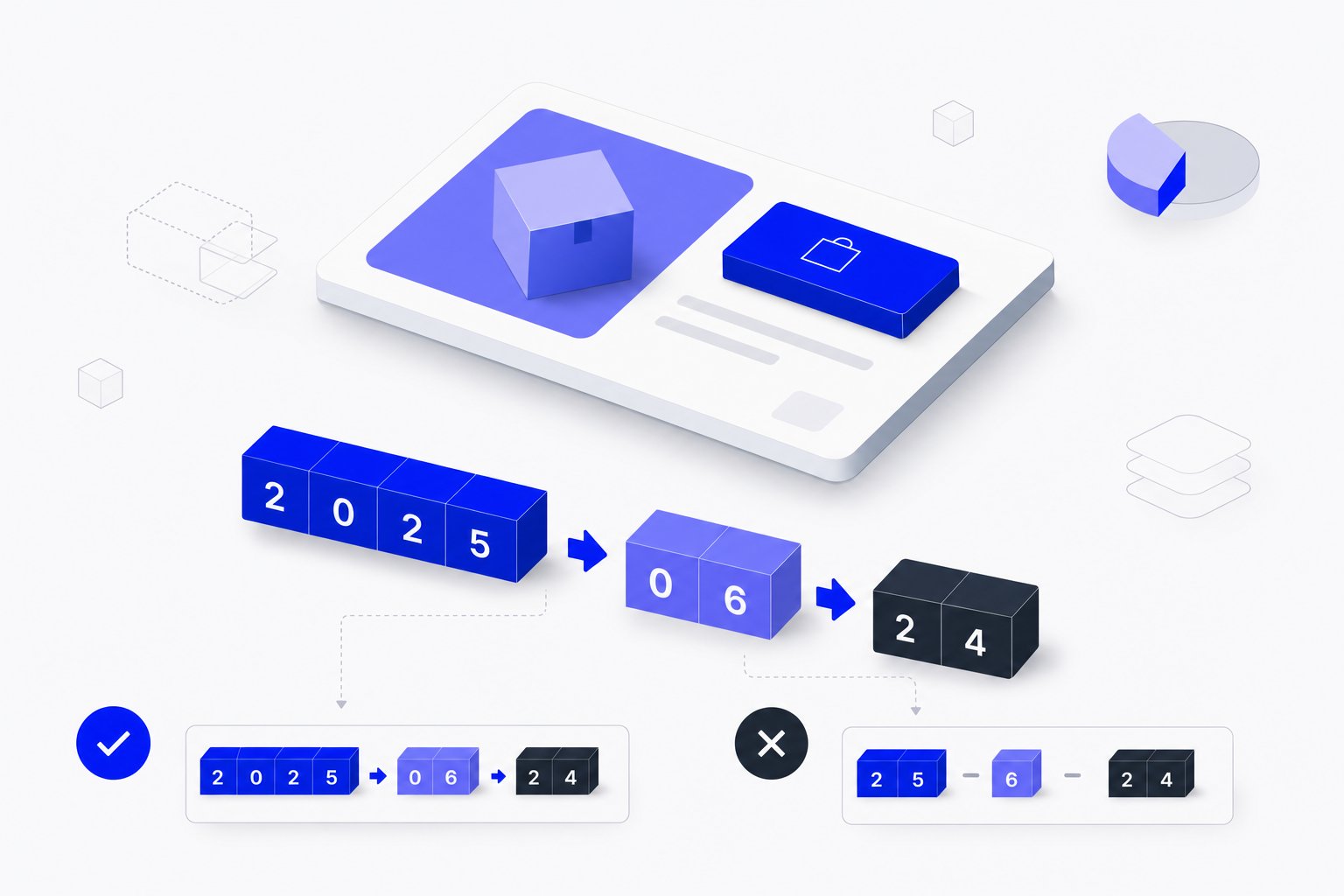
availability_date in Shopping Feeds: Format, Conditions and Errors
Learn when availability_date is required, how to format it correctly, and what happens when it is missing or malformed in your product feed.
size_type in Google Shopping Feeds: Values, Format and Rules
Learn when size_type is required, what values it accepts, and how it works with the size attribute to prevent apparel disapprovals.
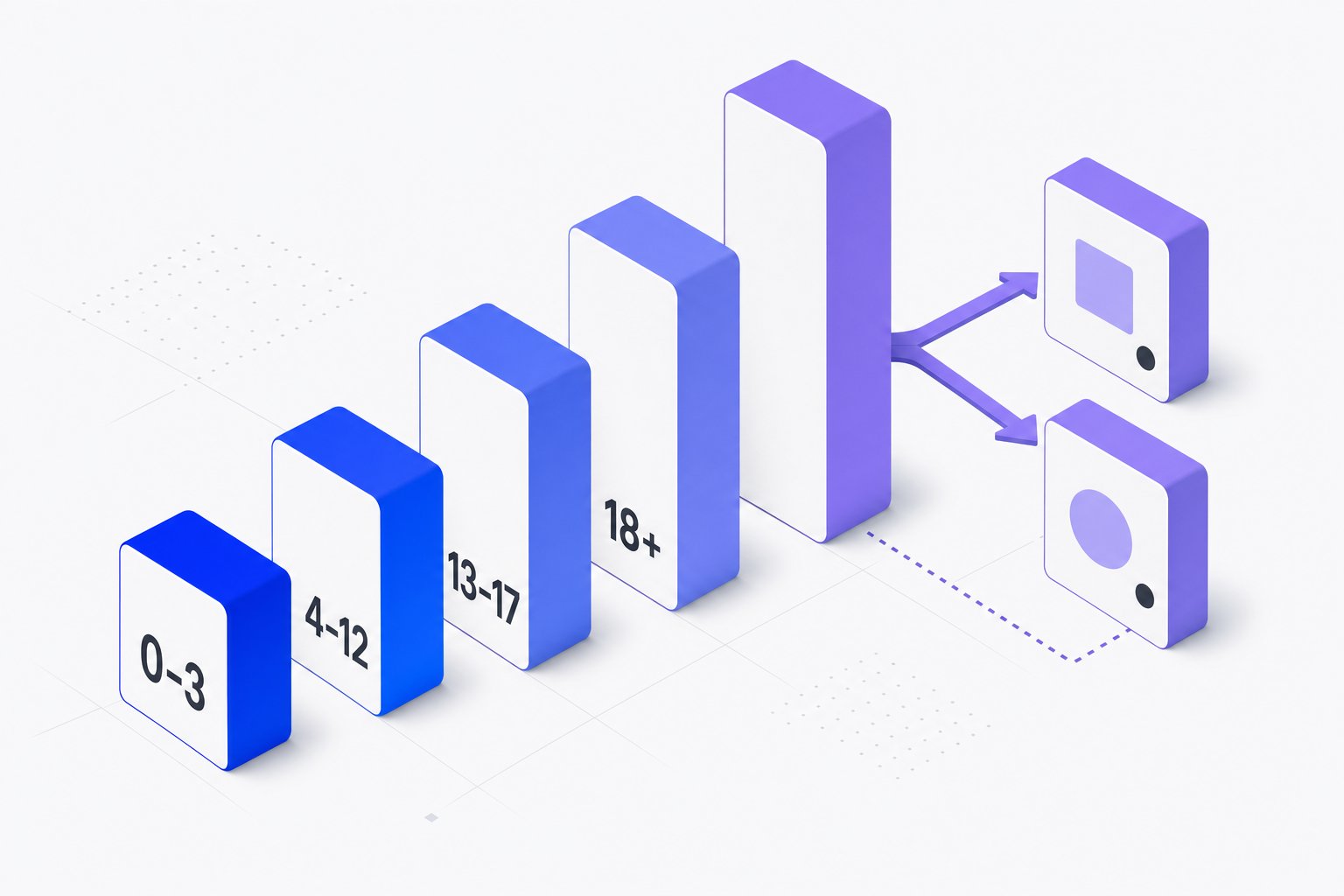
age_group in Google Shopping Feeds: Values, Rules and Variants
Learn which age_group values Google accepts, when submission is required, and how it works with item_group_id for apparel variants.