


A missing GTIN in your product feed can reduce a product's visibility in Google Shopping and prevent accurate product matching. This guide walks through the specific checks you need to run, what the rules actually require, and how to handle products that legitimately have no GTIN.
What Google Requires from the GTIN Attribute
Before you can diagnose a problem, you need to know what a valid submission looks like.
According to Google documentation, several number formats are accepted under the gtin attribute:
- UPC (GTIN-12): 12-digit number (convert 8-digit UPC-E codes to 12-digit)
- EAN (GTIN-13): 13-digit number
- JAN (GTIN-13): 8 or 13-digit number
- ISBN (books): 13-digit number (convert ISBN-10 to ISBN-13; submit only the 13-digit version if you have both)
- ITF-14 (multipacks, GTIN-14): 14-digit number
The accepted digit counts are 0, 8, 12, 13, or 14. A value with any other digit count will fail format validation immediately.
Spaces and dashes are accepted in the submitted value but are ignored by the system, so 3234567890126 and 3 234567890126 are treated the same.
Critically, Google documentation states that products must not use GTINs in restricted ranges. Specifically: do not submit a GTIN with a prefix of 02, 04, or 2 (restricted ranges), and do not submit one with prefixes 05, 98, or 99 (coupon ranges). These values will be flagged regardless of whether the check digit is mathematically valid.
A Systematic Diagnostic Checklist
Work through these checks in order. Stop at the first one that explains the error.
1. Is the GTIN field blank when a GTIN exists?
If you sell a branded, manufactured product, a GTIN almost certainly exists. Check the product packaging, the manufacturer's website, or your distributor's data sheet. The barcode on the box encodes the GTIN. A blank field when a value exists is the most common cause of the missing GTIN warning in Merchant Center.
2. Does the digit count match an accepted format?
Count the digits in your submitted value (excluding spaces and dashes). The count must be 0, 8, 12, 13, or 14. A 10-digit value, for example, is not a valid GTIN format. If you see a 10-digit number, it may be an ISBN-10 — convert it to ISBN-13 before submitting.
3. Is the check digit correct?
Every GTIN has a check digit as its final digit, calculated from the preceding digits using a standard algorithm. According to Google documentation, you must "make sure that the check digit is present and correct using the GS1 Check digit calculator." If the check digit is wrong, the GTIN is invalid. Do not attempt to guess or repair the final digit yourself — instead, locate the manufacturer-assigned identifier on the packaging or product data sheet and re-enter it in full.
4. Does the prefix fall in a restricted or coupon range?
Check the first two digits of your GTIN. Prefixes 02, 04, and 2 indicate internally assigned numbers not suitable for Shopping feeds. Prefixes 05, 98, and 99 are reserved for coupons. Neither category should be submitted.
5. Are variant GTINs correct and unique?
Each variant of a product has its own manufacturer-assigned GTIN. A blue size-M shirt and a red size-L shirt from the same product line each have a distinct GTIN. Submitting the same GTIN for two different variants, or using a parent GTIN for all child variants, breaks this requirement. Google documentation is explicit: "each product and variant of a product (different colors or sizes) has its own GTIN, so make sure to submit the correct value."
6. Does the product genuinely have no GTIN?
Some products were never assigned a GTIN. Custom goods, handmade items, and products manufactured before GTIN systems existed fall into this category. If you confirm no GTIN exists, do not invent one. Instead, leave the gtin field blank and take the step described in the next section.
Handling Products Without a GTIN: The identifier_exists Attribute
Leaving the gtin field blank without any additional signal will generate a warning in Merchant Center. The correct approach for products that genuinely have no unique product identifiers is to set identifier_exists to no (or false in API data sources).
Google documentation explains that this attribute is "recommended for products that don't have a GTIN [gtin], MPN [mpn], or brand [brand]." If your product is new and has no assigned identifiers meeting the requirements, you submit identifier_exists with a value of no or false. The value must be submitted in English.
Products that may legitimately use this approach include:
- Custom goods or one-of-a-kind products (custom T-shirts, handmade crafts, art)
- Products produced before GTINs were introduced (vintage goods, antiques, books published before 1970)
Important caveat: If you set identifier_exists to no for a product for which Google finds evidence that a GTIN does exist, the product will receive a warning. This is not a workaround for a missing or unknown GTIN on a standard branded product — it is only for products that genuinely have none.
The value is a Boolean. In a text (TSV or CSV) data source, submit no. In an XML data source, submit <g:identifier_exists>no</g:identifier_exists>.
Hypothetical Example: Diagnosing a Mixed Catalog
The following is a hypothetical example for illustration purposes only.
Suppose a sporting goods retailer submits a feed with three product rows:
| Product | Submitted GTIN | Issue |
|---|---|---|
| Branded running shoe, size 10 (blue) | 012345678901 | 12 digits, prefix 0 — valid format; check digit should be verified against manufacturer data |
| Same shoe, size 10 (red) | 012345678901 | Same GTIN as the blue variant — violates the rule that each color variant must have its own GTIN |
| Handmade leather wallet | (blank) | No GTIN field and no identifier_exists attribute — will generate a warning |
For the first row, the merchant should confirm the GTIN from the product box or manufacturer sheet rather than assuming the value is correct. For the second row, the merchant needs to locate the red variant's distinct manufacturer-assigned GTIN. For the third row, because the wallet is handmade and has no assigned GTIN or MPN, the merchant should leave gtin blank and set identifier_exists to no.
Keeping Your Feed Clean Going Forward
A few practices reduce recurring GTIN issues:
- Map GTINs from your source data at import, not at export. Errors introduced during feed generation are harder to catch than errors caught at catalog entry.
- Audit variant rows separately. A parent product GTIN submitted across all variants is a common source of duplicate-GTIN warnings.
- Do not guess. As Google documentation states: "If you're unsure of a GTIN, don't submit one."
- Re-check the full identifier, not just the last digit. A check-digit failure usually indicates a transcription error somewhere in the full number, not just at the end.
Tools like Magicfeedpro can help you audit attribute completeness across large catalogs and map supplemental data sources to fill gaps before submission. If you're also dealing with other Merchant Center attribute errors alongside GTIN issues, see the guide to Google Merchant Center Errors: 12 Common Fixes.
Related articles
Tax Attribute in Google Shopping Feeds: Format and When to Submit
Learn when to include the tax attribute in your product feed and how to format country, region, rate, and tax_ship sub-attributes correctly.
identifier_exists False: What to Submit and When It Backfires
When to set identifier_exists to false in your product feed, what companion attributes you still need, and what causes its own disapproval.
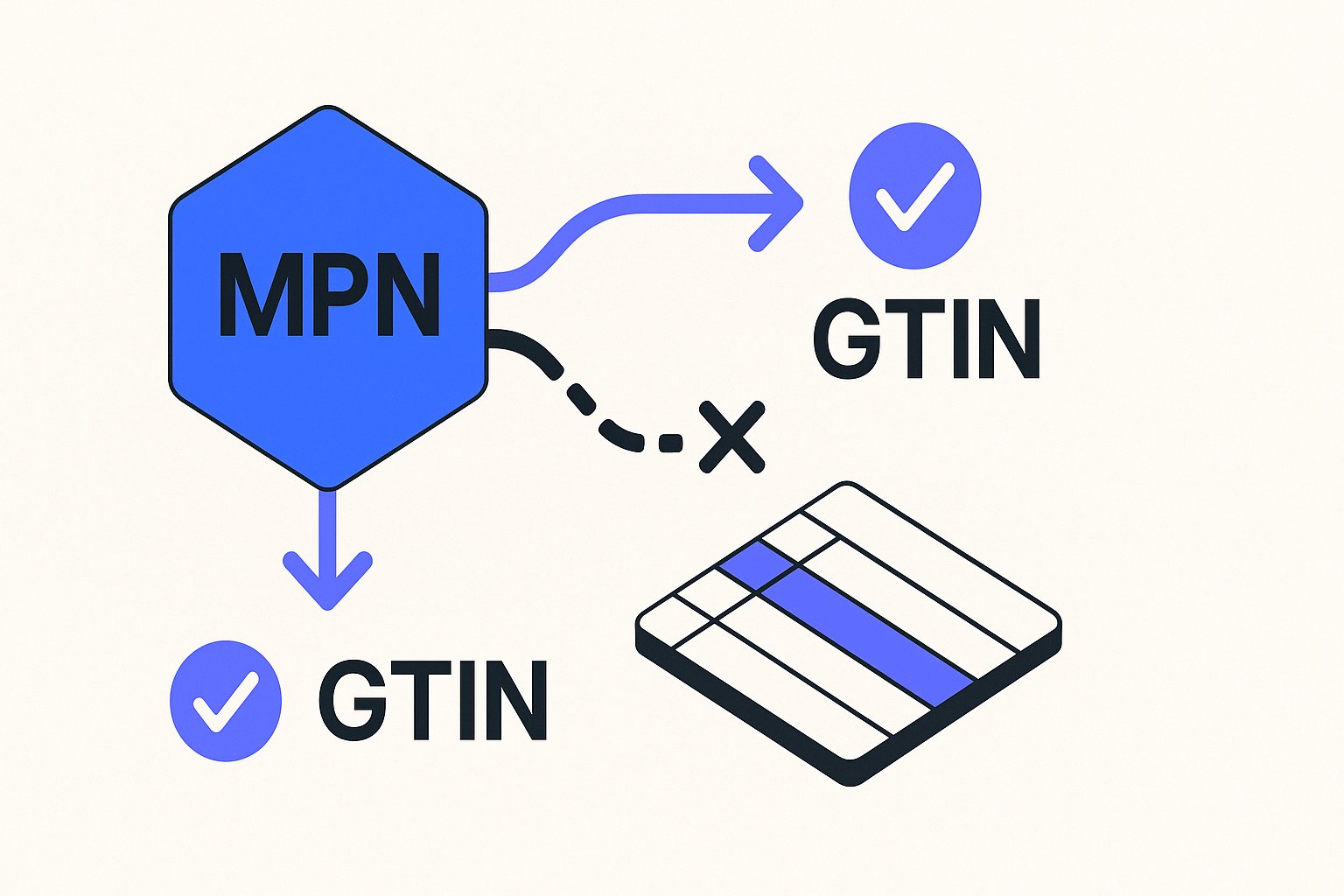
MPN Attribute in Product Feeds: Rules When There Is No GTIN
Learn when the mpn attribute is required, how to format it correctly, and what to submit when a product has no GTIN.