

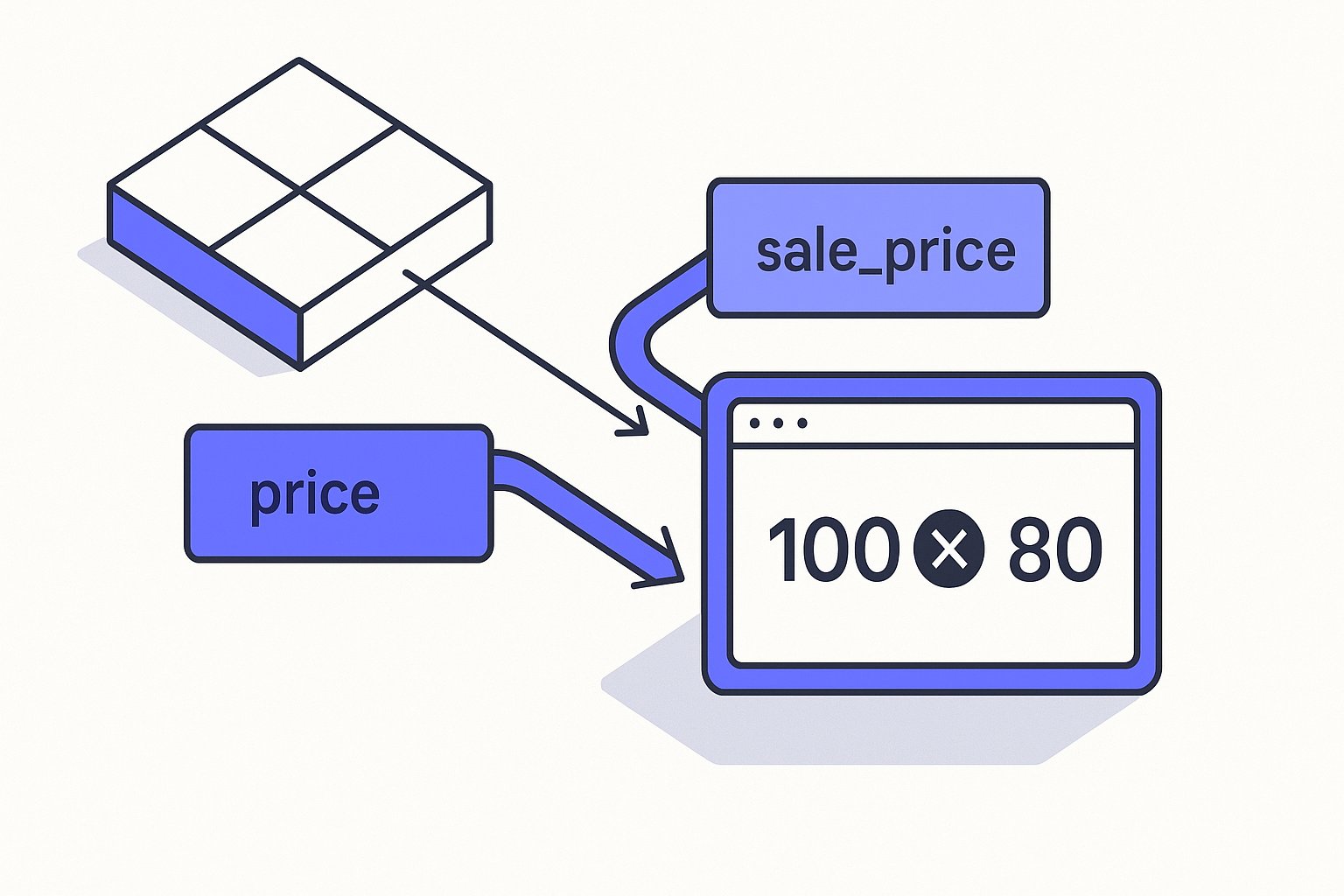
A merchant center price mismatch disapproval stops a product from showing on Shopping ads and free listings immediately. Before you can fix it, you need to know which attribute Google compared against your landing page — price [price], sale_price [sale_price], or both. This article walks through how each attribute is evaluated, what triggers a disapproval versus a less severe outcome, and how to trace the root attribute when feed data and live page data diverge.
Which Price Attributes Does Merchant Center Compare?
Google compares the values you submit against what its crawler reads on your landing page and checkout pages. There are two primary price attributes in play.
price [price] is required for every product. According to Google documentation, you must "submit an amount and currency that match the price on your landing page and the checkout pages." That comparison covers both locations — landing page and checkout — not just one of them. If the crawled price differs from the submitted value, Merchant Center flags the product.
sale_price [sale_price] is optional, but once submitted it is also subject to a matching requirement. Per Google documentation, you must "submit a value that matches the sale price you display on your landing page and at checkout." Importantly, the sale price does not have to be the most prominent price on the landing page — if you display the original price in a larger font alongside the sale price, that is permitted. But the sale price value itself must be consistent through checkout.
When both attributes are submitted, Google compares both. A mismatch in either one can cause a disapproval.
The price [price] attribute when a sale is active
This is a common point of confusion. Google documentation states: "When you submit the sale price [sale_price] attribute, continue to submit the full price of your product (the cost when it's not on sale) by also submitting the price [price] attribute." If your product is on sale and you have not submitted sale_price, you should instead submit the sale price as the value for price [price]. Mixing these two approaches — submitting the original price in price while the page already shows only the lower price without sale_price in the feed — is a frequent cause of mismatch disapprovals.
What Triggers a Disapproval vs. a Warning?
A price mismatch results in product disapproval, not merely a warning. The Google documentation states clearly: "If you don't follow these requirements, we disapprove your product and let you know in your Merchant Center account." The product stops serving until the mismatch is resolved and the item is re-crawled or reprocessed.
Several situations are explicitly flagged as requirements (not recommendations) in the price specification:
- The price must match on both the landing page and checkout. A price that is correct on the landing page but changes at checkout still triggers a disapproval.
- You must not use "View price in cart" in place of a visible price. Hiding the price behind cart interaction is a requirement violation.
- You must not change the price based on a user's IP-detected location. If regional pricing is needed, the regional pricing program must be used.
- Member prices must not be submitted via
price [price]orsale_price [sale_price]. Theloyalty_program [loyalty_program]attribute must be used instead.
None of these are best-practice suggestions. Violating any one of them leads to disapproval.
How to Trace the Root Attribute
When a product is disapproved for a price mismatch, the diagnostic steps depend on which attributes you have submitted.
Step 1: Check which price attributes are in your feed row.
Open your feed file or your feed management tool and look at the specific product row. Note whether you have submitted price, sale_price, or both. A product that has only price submitted is simpler to evaluate. A product with both attributes requires you to compare both values against the page.
Step 2: Check the live landing page price and the checkout price separately.
Google's crawler checks both locations. If your platform applies a discount code at checkout that lowers the price, but your landing page still shows the original price and your feed submits the original price, checkout is the mismatch point. Conversely, if a sale is live on the landing page but your feed still submits the pre-sale price value without a sale_price, the landing page is the mismatch point.
Step 3: Identify the active attribute.
If sale_price is present in the feed, Google treats that as the current selling price to match against the page. If sale_price is absent, price is the value under comparison. Knowing which attribute is active tells you exactly which number to reconcile.
Step 4: Check the currency and format.
The Google documentation specifies that the format is "Number plus currency (use ISO 4217)." A value submitted as 15.00 USD must correspond to the currency displayed on the landing page for the target country. A currency mismatch is treated as a price mismatch.
Step 5: Check for rounding issues on sale_price.
For sale_price, Google documentation notes: "Don't provide more than 2 digits after a decimal." Values with more decimal places are rounded automatically. If your platform generates prices like 29.8999, Merchant Center rounds to 29.90. If the page displays 29.90 but your feed submitted 29.8999, this is not a disapproval risk because of the rounding rule — but verify your platform's output format regardless.
Hypothetical example
The following is a hypothetical scenario for illustration only.
Suppose a catalog operator sells a T-shirt. The feed row contains:
| Attribute | Feed value |
|---|---|
price [price] | 25.00 USD |
sale_price [sale_price] | 19.00 USD |
The landing page displays 19.00 USD as the sale price and 25.00 USD as the original price. Checkout shows 19.00 USD. In this scenario, both attributes match their respective page values and no mismatch disapproval would be expected.
Now suppose the operator's Shopify theme ends the sale early and reverts the page to 25.00 USD as the only displayed price, but the feed still carries sale_price: 19.00 USD. The crawler now sees 25.00 USD on the page; the feed says the current price is 19.00 USD. That divergence triggers a mismatch disapproval on the sale_price attribute. The fix is to remove sale_price from the feed row (or update it to match the page) and ensure price reflects 25.00 USD.
This is exactly the diagnostic path: compare each submitted attribute value against what Google's crawler would read on the live page, starting with sale_price if it is present, then confirming price.
Keeping Attributes Aligned After a Fix
Once you identify which attribute caused the disapproval, the structural fix is straightforward: correct the attribute value and ensure your feed refresh cadence is short enough that the feed value stays in sync with the live page. Platforms like Magicfeedpro are designed to help catalog operators manage and maintain accurate destination feeds, which is where price attribute alignment lives in practice.
A few standing rules drawn from the requirements:
- If a product goes on sale, add
sale_priceto the feed rather than overwritingprice. Keep submitting the original full price inprice. - If a sale ends, remove
sale_pricefrom the feed. Do not leave a stalesale_priceattribute pointing to a price that is no longer on the page. - Never submit a member price in
priceorsale_price. Useloyalty_programfor that. - Do not include shipping costs inside the
pricevalue. Merchant Center treats that as a price discrepancy if the page shows a lower product price with shipping separated.
Tracing a price mismatch disapproval is a two-column problem: the feed column and the live page column. Identify the active attribute, read both values, and correct the one that is wrong. The Merchant Center diagnostic tells you a mismatch exists; the attribute specification tells you exactly what must match and where.
Related articles

Brand Attribute in Feeds: Private-Label and Unbranded Products
How to format the brand attribute for private-label or unbranded products, and how that choice interacts with identifier_exists and GTIN rules.
Shipping Weight and Dimensions in Google Shopping Feeds
Learn when shipping_weight and dimension attributes are required in Merchant Center feeds and how to format values correctly.

identifier_exists With a GTIN: What to Set for brand
When a product has a valid GTIN but no brand value, here is what Merchant Center requires for identifier_exists and brand.