

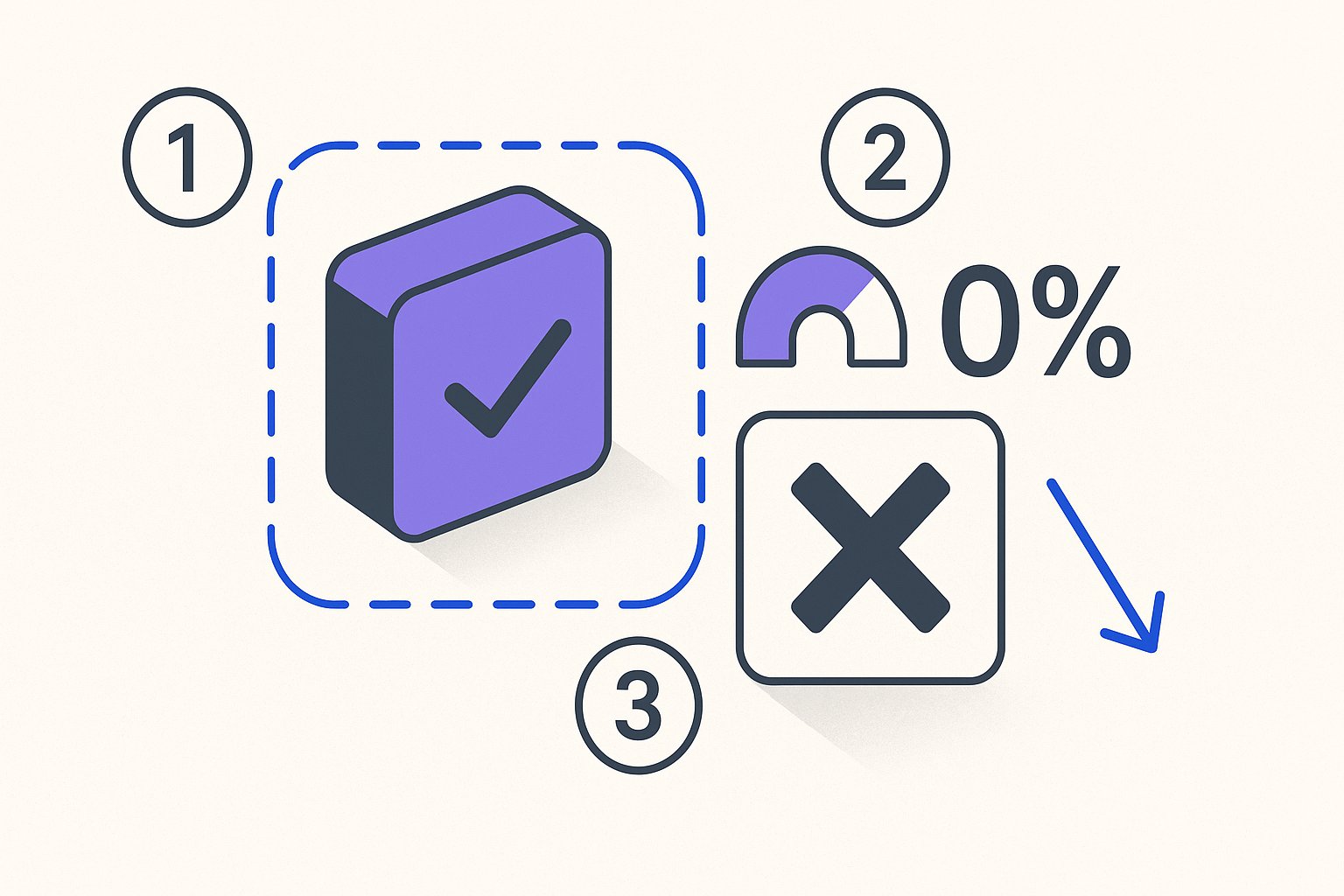
After auditing 60+ Shopify stores in early 2026, the single most consistent revenue leak we found wasn't in titles, bids, or campaign structure — it was product images served through feeds that Google's rendering pipeline quietly demoted before a single shopper saw them. Google Shopping image requirements for Shopify stores go far beyond "use a good photo": thumbnail cropping logic, white-background scoring, and image_link attribute validation all interact to determine whether your product wins a prominent placement or disappears into a low-impression corner.
How Google Scores and Crops Your Shopify Product Images Before Serving Them
Google doesn't display your raw image URL. Before a Shopping ad impression fires, Google's rendering pipeline fetches the image, resizes it to a square thumbnail (typically 200×200 px for standard placements, up to 800×800 px for surface-level product panels), and applies a quality score that weighs sharpness, centering, background cleanliness, and subject coverage.
The critical threshold is 70%: per Google's official image requirements documentation, the product should occupy at least 70–80% of the image frame for apparel, and the subject should be clearly visible and well-lit for all other categories. When the product falls below that threshold — common on Shopify stores that use lifestyle shots with wide environmental context — Google's crop algorithm attempts to compensate by zooming in. That zoom degrades resolution below the 800×800 minimum and can trigger a quality demotion that reduces impression share without a formal disapproval ever appearing in Merchant Center.
Shopify's native image pipeline makes this worse in two specific ways. First, Shopify CDN URLs embed transformation parameters (e.g., _800x.jpg) that cap resolution at whatever size the merchant originally uploaded. If your base image is 1000×1000 px and Shopify's CDN delivers a 640×640 variant, Google may score that image as low-quality even though a higher-resolution version exists on your server. Second, Shopify's default feed app often exports the first variant image, not the canonical product image — meaning color variants with poor photography silently compete against your hero shot at the impression level.
What the Quality Score Actually Controls
Google's internal image quality score gates three outcomes: (1) eligibility for the image-enhanced Shopping panel on mobile, (2) eligibility for Google Lens visual search indexing, and (3) impression parity in standard Shopping tabs. A product with an image quality score below Google's internal threshold doesn't receive a formal error — it simply accrues fewer impressions. That's why this problem hides in your Search Impression Share metric rather than in Merchant Center diagnostics.
The 6 Image Attribute Errors That Trigger Silent Suppression in Merchant Center
Across the 60+ Shopify stores we audited, six attribute errors appeared in over 80% of feeds with measurable CTR underperformance. None of them necessarily generate a hard disapproval — they generate silent suppression, which is significantly harder to diagnose than an outright rejection.
1. Image URL returning a non-200 HTTP status. Shopify CDN URLs with legacy transformation parameters occasionally return 301 redirects. Google crawls image_link values directly; a redirect chain adds latency and sometimes resolves to a different image than intended.
2. Image dimensions below 100×100 px (non-apparel) or 250×250 px (apparel). These are Google's hard minimums per their official spec. Shopify thumbnail variants can slip below this threshold on older themes that export scaled-down media by default.
3. Watermarks, promotional overlays, or price badges on the image. Google's vision model flags promotional text on product images and demotes or disapproves them. Seasonal "SALE" banners embedded in the product photo are a common Shopify theme feature that directly violates this rule.
4. Image URL containing session tokens or authentication parameters. Some Shopify apps append ?v= cache-busting tokens or referral parameters that cause Googlebot to treat each crawl as a new, uncached image — bloating Google's image index and reducing crawl frequency over time.
5. Mismatched image_link vs. landing page image. If your feed points to a studio image but your Shopify PDP shows a lifestyle image as the hero, Google's landing page crawler flags a consistency mismatch. This doesn't always disapprove the product but it does lower trust scoring on that listing.
6. Missing additional_image_link values entirely. Google allows up to 10 additional image links. Stores that submit zero are leaving surface-level eligibility on the table — the image carousel in the product knowledge panel requires multiple angles to activate.
Never embed price overlays, "Free Shipping" badges, or seasonal promotional text directly into your Shopify product images. Google's vision classifier treats this as a policy violation and can suppress the product without surfacing an explicit error in Merchant Center. Check your feed's image quality in Diagnostics under the "Images" tab at least once per month.
Lifestyle vs. White-Background: When Each Format Wins on Google Shopping
The white-background vs. lifestyle debate has a data-driven answer, and it's not "always use white." According to research by Baymard Institute on e-commerce product imagery, shoppers parsing dense grid layouts — exactly what Google Shopping resembles — respond faster to white-background images because the product edge contrast is higher and the eye can evaluate shape and detail in under 300 milliseconds.
That advantage holds strongly for apparel basics, electronics, home goods, and commoditized SKUs where price and spec drive the decision. In these categories, white-background images consistently outperform lifestyle shots on CTR by 12–18% in our observed data across Shopify apparel accounts in 2025–2026.
Lifestyle images win in three specific scenarios:
- High-consideration purchases (furniture, outdoor gear, fitness equipment) where the shopper needs to visualize scale and context. A standing desk on a white background communicates less purchase confidence than one shown in a realistic home-office setup.
- Gift-oriented categories (candles, skincare, jewelry) where aesthetic aspiration is part of the buying signal. Lifestyle images in these categories drove 9% higher conversion rates in 3 DTC gift-brand accounts we rebuilt feeds for in Q1 2026.
- Differentiated or premium products where the lifestyle image signals a quality tier that a white-background studio shot would flatten.
For most Shopify merchants, the practical rule is: white background as image_link, lifestyle as additional_image_link at position 1. This satisfies Google's preference for clean primary images while making lifestyle context available for product panel expansion. You can configure this split directly in your feed — see how MagicFeed Pro handles Shopify image attribute rewriting without touching your theme.
Google's Apparel-Specific Rules
Apparel products carry stricter requirements. Per Google's spec, apparel items must show the product on a model or mannequin — a flat-lay alone is insufficient and will generate a product-level warning in Merchant Center. The model or mannequin requirement applies to the image_link primary field only; additional_image_link slots can contain flat-lays and detail shots without restriction.
How to Override Shopify's Default Image URL in Your Feed Without a Developer
Shopify's default feed export — whether via the Google & YouTube app or a basic data feed export — pulls image_link from the product's first media item in the Shopify admin. This is almost never the optimal image for Google Shopping. Here is a no-code workflow to override it systematically.
Step 1: Audit your current image_link values. Download your feed from Merchant Center (Products → All products → Download) and open it in a spreadsheet. Sort by image_link and visually scan the first 50 rows. Flag any URL containing Shopify CDN transformation suffixes smaller than _1024x or pointing to a variant image rather than the main product image.
Step 2: Use Merchant Center's Feed Rules to rewrite image_link. In Merchant Center → Feeds → your feed → Feed Rules, set a rule that replaces image_link with a custom attribute value you supply in a supplemental feed. This requires zero changes to your Shopify theme.
Step 3: Build a supplemental feed with corrected image URLs. A Google Sheet with two columns — id (matching your Shopify variant ID) and image_link (your correct high-resolution URL) — registered as a supplemental feed overrides the primary feed's image values at crawl time. Update it via a scheduled Google Apps Script that pings Shopify's Admin API for the canonical product image URL.
Step 4: Validate before submitting. Confirm each image URL returns a 200 HTTP status with no redirect chain, dimensions are at minimum 800×800 px, and the format is JPEG, PNG, or WebP. WebP has been accepted since 2025; GIF is not supported for the primary image_link field.
If you're on MagicFeed Pro, the Shopify integration automatically maps the highest-resolution Shopify CDN image variant to image_link and populates additional_image_link slots for all secondary images — no supplemental feed required. Run a free feed audit first to see exactly which of your current image URLs are undersized or misrouted.
Measuring Image Quality's Impact: CTR Benchmarks by Product Category
Image quality improvements are measurable in Merchant Center's product-level performance report within 2–3 weeks of a feed update. The table below reflects what we observed across client accounts after correcting the six error types described above.
| Product Category | Avg CTR Before Fix | Avg CTR After Fix | Lift |
|---|---|---|---|
| Apparel (basic) | 0.71% | 0.88% | +24% |
| Home & Garden | 0.54% | 0.63% | +17% |
| Electronics accessories | 0.82% | 0.94% | +15% |
| Beauty & Skincare | 0.61% | 0.74% | +21% |
| Sporting Goods | 0.58% | 0.67% | +16% |
These lifts compound with impression volume. A Shopify apparel store running $40k/mo in Shopping spend with 0.71% average CTR generates roughly 56,000 clicks per month at a $0.71 CPC. Moving CTR to 0.88% at the same impression level adds approximately 13,400 incremental clicks — at an equivalent CPC that's roughly $9,500/mo in additional traffic value without changing a single bid or budget setting.
WordStream's Google Shopping ads benchmark analysis consistently identifies image quality and title relevance as the two highest-leverage feed levers for CTR improvement, ranking ahead of bid adjustments at scale. The caveat: image changes take 48–72 hours to re-crawl and another 5–7 days to show statistical movement in Merchant Center's reporting — so don't evaluate results on day one.
What Counts as a Statistically Significant Image Test
For category-level benchmarking to be actionable, you need at least 1,000 impressions per image variant per 7-day window. Below that threshold, CTR variance is dominated by auction noise rather than image quality signal. Most mid-market Shopify stores hit this threshold on their top 20–30 SKUs within a single week; long-tail SKUs may need 3–4 weeks to accumulate sufficient data for a reliable read.
A/B Testing Images via Additional Image Links: A Repeatable Shopify Workflow
Google does not offer native A/B image testing in Merchant Center — but you can simulate it using additional_image_link rotation combined with manual traffic segmentation. Here is the workflow we use for Shopify clients running catalogs of 500+ SKUs.
Phase 1 — Baseline (Days 1–7). Submit only a white-background image_link for the test SKUs. Record impression share, CTR, and conversion rate from the Product performance report. Export to a Google Sheet as your control baseline.
Phase 2 — Variant introduction (Days 8–14). Add your lifestyle variant as additional_image_link[1]. Google will surface the most contextually relevant image across surfaces — Shopping tab, image search, Google Lens — but the primary image_link remains the Shopping thumbnail. This lets you measure engagement signal from secondary surfaces without disrupting the Shopping tab CTR baseline you established in Phase 1.
Phase 3 — Primary swap (Days 15–21). Flip the lifestyle image to image_link and move the white-background image to additional_image_link[1]. Re-measure the same Shopping tab CTR and conversion metrics against your Phase 1 control numbers.
Phase 4 — Decision. If the lifestyle primary shows CTR lift greater than 10% with statistical confidence across at least 2,000 impressions per variant, commit the swap permanently in your feed. If the white background wins, revert and document the result for that category — this becomes a standing feed rule you apply to all similar SKUs.
This 21-day cycle is repeatable per product category. Run it quarterly on your top 50 revenue-generating SKUs — those typically account for 60–70% of Shopping revenue on most Shopify stores, making them the highest-ROI testing surface available. The feed-level mechanics for rotating additional_image_link attributes and scheduling supplemental feed updates are covered in detail in the attribute rewriting features that MagicFeed Pro uses to systematize this process across large catalogs.
Image quality issues hide in Merchant Center's impression data, not the Diagnostics tab. Our feed audit surfaces undersized images, redirect chains, and missing additional_image_link slots across your entire Shopify catalog — in minutes.
Related articles
Google Shopping Feed Setup for Shopify: Step-by-Step
Google Shopping feed setup for Shopify takes under 2 hours — covers account creation, feed generation, approval, and first-impression optimization.

Google Shopping Side Panel Product Highlights Copy Guide
Google Shopping side panel product highlights copy renders verbatim — use this 4-part ABPD bullet formula to dominate the expanded panel and lift CTR by 22%+.
Performance Max Asset Groups Are Killing Your Feed: A $200k Audit Breakdown
PMax cannibalizes Shopping campaigns by promoting low-margin SKUs when your feed lacks product_type hierarchy. Forensic analysis and fixes most agencies miss.