

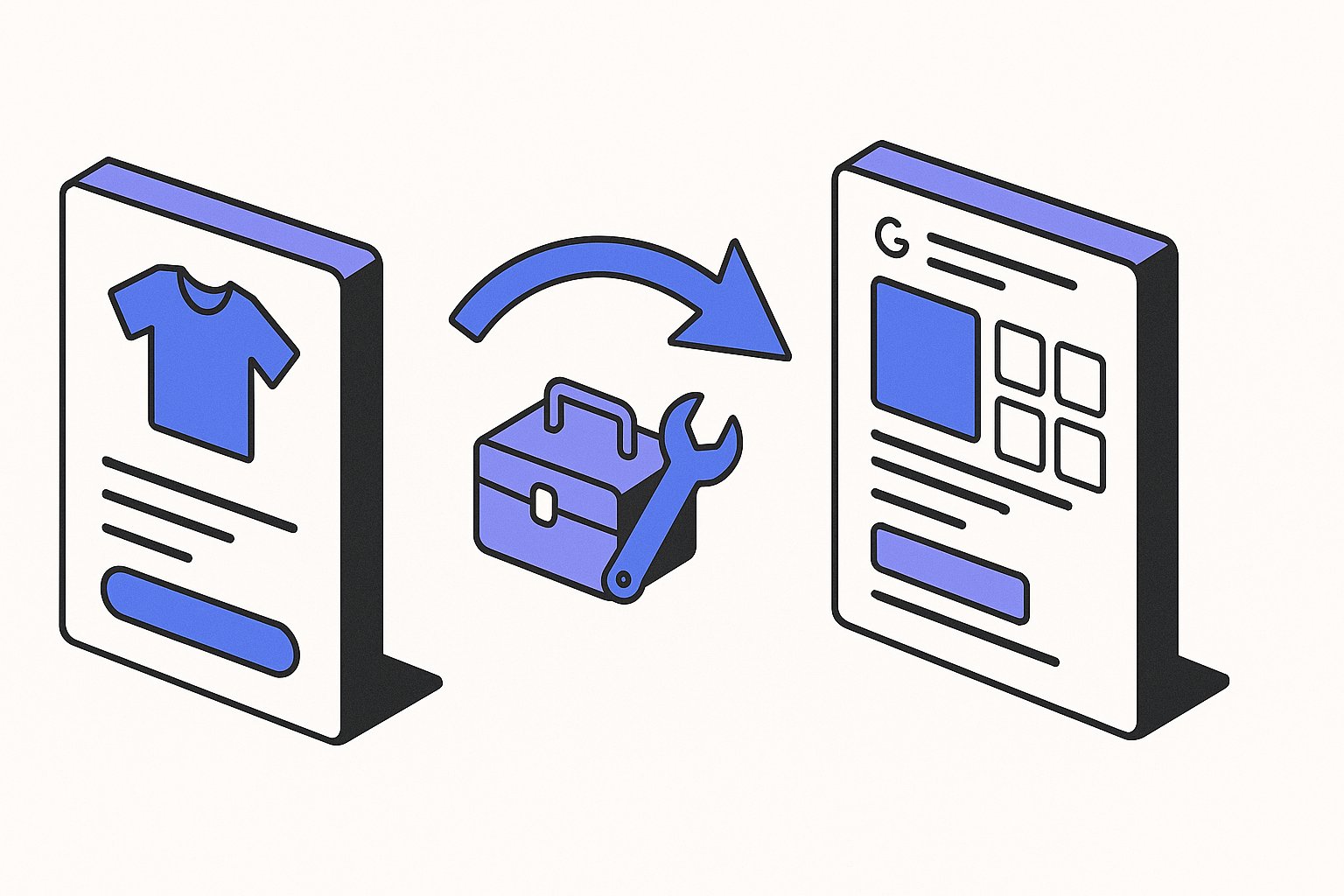
The Shopify → Google Shopping connection is one of those things that looks trivial — install an app, click a few buttons, done. Then six months in you wonder why your CTR is half of your competitor's.
The truth is the official Google channel ships a minimal feed by default. To actually rank in 2026, you need to enrich the feed with the attributes Google's quality algorithm now expects. This guide walks the full setup, then the enrichment layer that most stores miss.

Step 1 — Prepare Your Shopify Store
Before you touch Google, three things must be true in Shopify:
- Product titles include the brand. If your products are private label, use your own brand name. If you resell other brands, the title must include the brand. Open Products → All products → bulk edit → Vendor and verify the vendor field is populated on every SKU.
- You have at least one image per product. Square images 1:1 work best for Shopping. Minimum 800px; ideal 1500–2000px.
- Your shipping rates are defined and live for the destination countries. Google rejects products with no shipping computable to the destination.
A common Shopify mistake: storing the GTIN on the parent product. Google reads GTIN per variant /variant-clustering-in-shopping-feeds-stop-cannibalizing-your-own-ads. Use the variant-level barcode field, not a top-level metafield.
In high-variant categories like apparel, how you split those variants across listings matters as much as the GTIN placement — variant listing structure can swing impression share by 30–45%.
Step 2 — Install the Google & YouTube Channel
In Shopify admin → Apps → Visit Shopify App Store → search for "Google & YouTube". Install.
This is the official Google-built channel; ignore the third-party feed apps /merchant-center-supplemental-feeds-fix-what-primary-can-t that show up alongside it for now — we'll come back to them in Step 5 for enrichment.
Connect your Google account, then your Merchant Center account. If you don't have one yet, the app creates one for you in the same flow.
Verify:
- The connection page shows "Connected" on both Google and Merchant Center.
- Tax and shipping settings are mapped.
Step 3 — Configure Category Mapping
The channel auto-suggests a Google Product Category for each product. Auto-suggestions are usually 60–80% accurate. Open the Product Status view and check a sample of 20 products.
For products mapped to the wrong category, edit Google product category directly on the product page in Shopify, or batch-edit via CSV import.
Always pick the most specific 5th-level category available — Apparel & Accessories > Clothing > Shirts & Tops > Dress Shirts ranks dramatically better than Apparel & Accessories > Clothing.
Step 4 — Map the Basic Attributes
In the Google channel settings, go to Product feed → Attributes. Map at minimum:
| Google attribute | Shopify source |
|---|---|
| title | Product title |
| description | Product description (rich HTML stripped) |
| link | Product URL |
| image_link | Main product image |
| availability | Inventory (0 → in_stock) |
| price | Variant price |
| brand | Vendor |
| gtin | Variant barcode |
| mpn | Variant SKU |
| condition | Defaults to "new"; override for refurbished |
| google_product_category | Manual mapping |
This is the bare minimum to pass Merchant Center validation. It is not enough to rank competitively.
Step 5 — Enrich With Metafields
This is where most Shopify stores leave money on the table. The default channel does not ship product_highlight, material, pattern, age_group, gender, size_type, or custom_label — all of which Google's 2026 quality scoring rewards.
There are two ways to add them:
Option A — Native Shopify Metafields
Shopify added native Google Shopping metafield mappings /shopify-metafields-as-pmax-signals-feed-attributes-google-won-t-tell-you-about in 2024.
Settings → Custom data → Products → Add definition:
- Namespace:
google - Key:
product_highlights - Type: List of single-line text (max 5)
Then on each product, fill the 5 highlight slots. The Google channel will pick them up automatically.
The copy you write for product_highlight carries more weight than most teams expect — highlights in the Shopping side panel render verbatim at near-full length in the expanded knowledge card, directly influencing click-through rate and conversion.
If you're using AI tooling to populate these fields at scale, AI rewrites should prioritize highlights over titles in 2026 — Google's rendering changes have elevated bullet copy into a first-order ranking signal.
The copy you write for product_highlight carries more weight than most teams expect — highlights in the Shopping side panel /writing-product-highlights-that directly influence click-through rate and conversion.

Why Feed Enrichment Matters for Rankings
Google's Shopping algorithm in 2026 treats feed completeness as a direct quality signal.
Inaccurate material, color, or sizing attributes don't just hurt rankings — an $8M order audit found that feed-level attribute mismatches drive a 3.1× higher return rate compared to accurately attributed products.
New SKUs added after initial setup face a structural cold-start problem — Google withholds impressions for 6–8 weeks unless you apply specific new SKU ranking tactics that front-load behavioural signals.
Stores that only populate the basic required attributes — title, description, price, GTIN — are competing at a structural disadvantage against sellers who also provide size_type, age_group, material, and product_highlight.
Think of it as two levers working together: eligibility (passing Merchant Center validation) and competitiveness (earning higher impression share through quality scoring). Steps 1–4 handle eligibility. Step 5 and beyond handle competitiveness. Skipping the enrichment layer is the single most common reason well-funded Shopify stores see underwhelming ROAS from Shopping campaigns despite having a technically valid feed.
Prioritise enrichment in this order:
product_highlight— highest visible impact on CTRcustom_label_0throughcustom_label_4— essential for Smart Bidding segmentationage_group+gender— mandatory for apparel; strong signal for all categoriesmaterial+pattern— differentiates variants and reduces search-term mismatch
Once your enriched feed has been live for 2–3 weeks, pull the Competitive Visibility report in Merchant Center to confirm your impression share is trending upward before investing further in bid strategy changes.
Sources & References
- Google Merchant Center Help — Official Google documentation on required and optional product data specification attributes (title, description, GTIN, brand, condition, availability, price, image_link, etc.) that must be mapped correctly to pass Merchant Center validation.
- Shopify Help Center — Official Shopify documentation for the Google & YouTube channel, covering installation, Merchant Center connection, product feed configuration, and attribute mapping steps described in the article.
- Google Merchant Center Help — Official Google documentation on the google_product_category attribute, supporting the article's recommendation to use the most specific 5th-level category for improved Shopping performance.
Related articles
Variant Landing Page URLs in a Shopping Feed: link Rules
Learn how to set the link attribute for each variant item in a Google Shopping feed to meet Merchant Center requirements.
item_group_id for Variants: Requirements, Value Rules, and Feed Impact
When item_group_id is required for color and size variants, what value rules apply, and what happens when it is missing or mismatched.
AI Search Is Reshaping Google Shopping: Feed for SGE in 2026
Google AI shopping feed optimization now hinges on 6 feed attributes that decide which products appear in AI Overviews carousels. Fix your feed in one pass.